|
Introduction - Overview - Purchasing
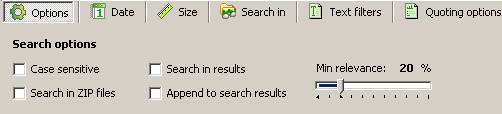
Usage:
1. Case sensitive. _program_name_ will think that
a*.txt means exactly a*.txt (not A*.txt)
2. Search in zip files, read more.
3. Search in results - searching in results
of previous search
4. Append to search results - will add newly
founded files to current search results
5. Min relevance - is the minimal relevancy
level. Files which are less relevant to search phrase will not be
included to search results.
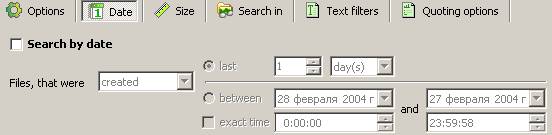
Date search options.
Usage:
1. To activate date search options you should
check "Search by date" check box.
2. You should specify type of date
(creation/access/changed)
3. Then you should specify time interval
4. With _program_name_ you can do precise time
search, you can specify time of creation - 12:02:12. So you can
easily find files that were creates from 12:02:12 to
12:02:30.
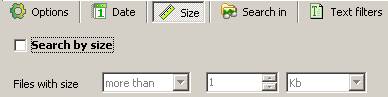
Size search options.
Usage:
1. Check "Search by size" check box
2. Specify size interval
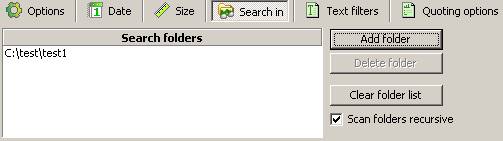
Search in options.
Usage:
1. Select path and click "Delete folder" button
to remove unnecessary search paths
2. Click "Add path" button to add some path to
search in (it can be network drive too)
Note:
_program_name_ will first will search in the
first item of the list (on picture it is "A:\"), then on "C:\" and
so on. So you can specify the search queue by changing the position
of path in "Search in..." list.
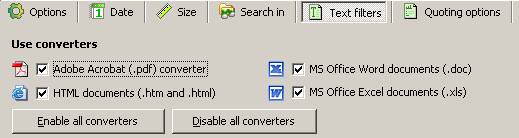
Text Filters:
Usage:
Check necessary filter to activate it.
Note:
Text filters convert file from some format to the
text. It allows _program_name_ to "see" that document as user see
it when viewing it.
For example .htm filter will convert htm document
(with all it's tags) to text document, which will contain only
information, necessary for analysis of document. _program_name_
will convert .htm to text, which will contain document content,
title, information from meta-tags - keywords and
description.
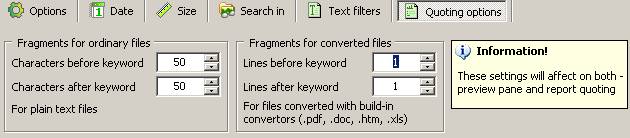
Quoting options:
Quoting options tag contains information about
displaying lines of files within search results.
Quoting options affect: preview pane,
search report
Please note: for plain text files you can specify
only number of characters to display before and after found
keyword. For .pdf, .doc, .htm, .xls and for other files that
_program_name_ convert before displaying, you can specify the
number of lines to display.
|


